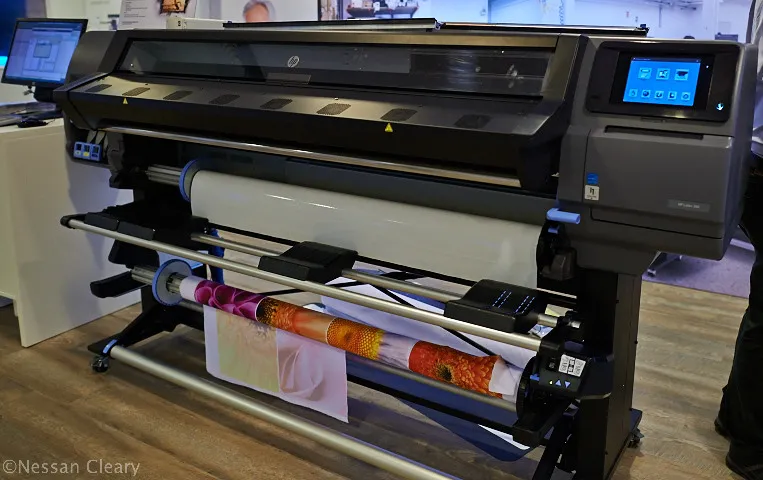

Achieving consistent results with latex printing technology is crucial for any print shop or graphics professional. Proper calibration ensures that colors remain accurate, print quality is reliable, and costly reprints are minimized. Whether you’re new to latex printing or looking to refine your workflow, understanding how to calibrate latex printers is essential for maintaining high standards and customer satisfaction.
This guide covers the step-by-step process to fine-tune your latex printer, from preparing your workspace to verifying output. Along the way, you’ll find practical tips, recommended tools, and links to further resources, including advice on what substrates work with latex printing for optimal results.
Understanding the Importance of Printer Calibration
Calibration is the process of aligning your printer’s output with industry standards and your specific requirements. For latex printers, this means ensuring that color reproduction, ink density, and media handling are all optimized. Without regular calibration, even the best printers can drift from their ideal settings, leading to color shifts, banding, or inconsistent coverage.
Proper calibration not only enhances print quality but also extends the life of your printer and reduces material waste. It’s a foundational step in any professional print workflow, especially when working with demanding clients or high-value projects.
Preparing for the Calibration Process
Before starting, gather the necessary tools and materials. You’ll need:
- Manufacturer’s calibration charts or test prints
- A reliable monitor calibrator for accurate soft proofing
- Fresh latex ink cartridges and compatible media
- Access to your printer’s maintenance and calibration menus
Make sure your workspace is clean and free from dust, as environmental factors can affect calibration accuracy. Allow your printer to warm up and stabilize, especially if it hasn’t been used for several hours.
Step-by-Step Guide: How to Calibrate Latex Printers
The following steps outline the typical calibration workflow for most latex printers. Always consult your specific printer’s manual for model-specific instructions.
1. Update Firmware and Software
Begin by checking for the latest firmware and driver updates from your printer manufacturer. Updated software can resolve bugs and introduce improved calibration routines.
2. Load the Correct Media
Insert the media you intend to use for production. Different substrates can affect color and ink absorption, so calibration should be performed on each type you regularly print on. For more on choosing suitable materials, see our article on best materials for latex printing.
3. Print and Analyze Test Charts
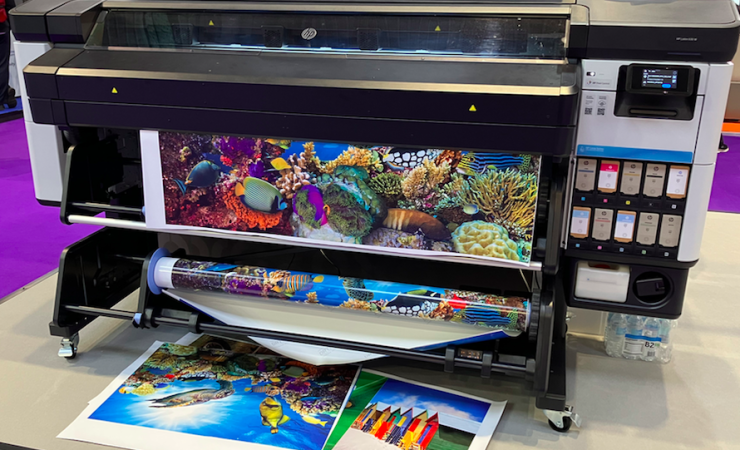
Access your printer’s calibration or color management menu and select the option to print a test chart. This chart typically includes a range of color patches and gradients. Allow the print to dry completely before proceeding.
4. Measure and Adjust Color Output
Use a spectrophotometer or your printer’s built-in sensor to scan the test chart. The printer will analyze the results and suggest adjustments to color profiles, ink limits, and linearization. Follow the on-screen prompts to apply these changes.
If you use a RIP (Raster Image Processor) for workflow management, ensure it’s configured to use the updated profiles generated during calibration.
5. Verify Print Quality
After adjustments, print a new test chart or a sample job to confirm improvements. Check for uniform color, smooth gradients, and absence of banding. If issues persist, repeat the calibration or consult your printer’s troubleshooting guide. For common issues and solutions, refer to our resource on common latex printing problems.
Tips for Maintaining Consistent Results
- Calibrate regularly, especially after changing ink cartridges or media types.
- Store media in a controlled environment to prevent humidity and temperature fluctuations.
- Use a monitor calibrator to ensure what you see on screen matches your printed output.
- Document your calibration settings and schedule for future reference.
- Stay informed about new calibration techniques by following industry updates, such as those found in this overview of latex printing benefits.

Advanced Calibration Considerations
For shops handling a variety of print jobs, advanced calibration may involve creating custom ICC profiles for each substrate and ink combination. This ensures the highest degree of color accuracy and repeatability. Some latex printers also support automated calibration routines, reducing manual intervention and potential for error.
If you experience persistent issues, such as color mismatches or print artifacts, additional troubleshooting may be necessary. Explore our troubleshooting latex printer issues guide for step-by-step solutions.
Frequently Asked Questions
How often should I calibrate my latex printer?
It’s recommended to calibrate your latex printer every time you change ink cartridges, switch media types, or notice a shift in print quality. For high-volume environments, a weekly or bi-weekly schedule is ideal.
Do I need special equipment to calibrate my printer?
While many latex printers have built-in calibration tools, using a dedicated spectrophotometer or monitor calibrator can improve accuracy. These tools help ensure your prints match your digital proofs.
What should I do if calibration doesn’t fix color issues?
If problems persist after calibration, check for outdated firmware, clogged printheads, or incompatible media. Reviewing your printer’s maintenance logs and consulting manufacturer support can help pinpoint the issue.
Can calibration help with substrate compatibility?
Yes, calibrating for each substrate ensures optimal ink adhesion and color reproduction. For more details on suitable materials, see our article on what substrates work with latex printing.
Conclusion
Mastering how to calibrate latex printers is a vital skill for anyone seeking reliable, high-quality prints. By following a structured calibration process and maintaining your equipment, you’ll ensure consistent output and satisfied clients. For further optimization, explore our tips on how to choose latex printer settings and stay updated with the latest industry practices.