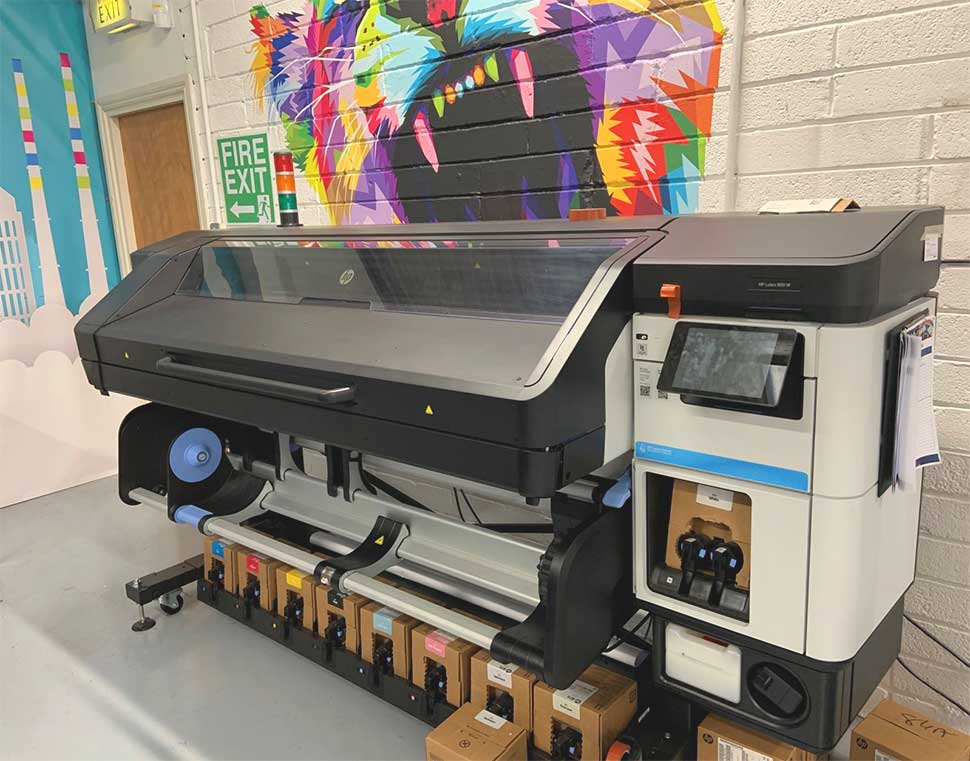

Creating professional graphics for latex printers requires careful preparation and a solid understanding of both design software and print technology. Latex printing with Adobe Illustrator is a popular workflow for producing vibrant, durable, and precise prints on a wide range of materials. Whether you’re working on signage, banners, or custom wallpapers, optimizing your Illustrator files for latex output ensures the best possible results.
This guide covers the essential steps for preparing artwork, managing color, and exporting files specifically for latex print workflows. You’ll also find practical tips, links to further resources, and answers to common questions about achieving outstanding print quality with this combination of tools.
For those interested in the longevity of their prints, you can learn more about how long latex prints last and what factors influence their durability.
Understanding the Latex Print Process and Illustrator’s Role
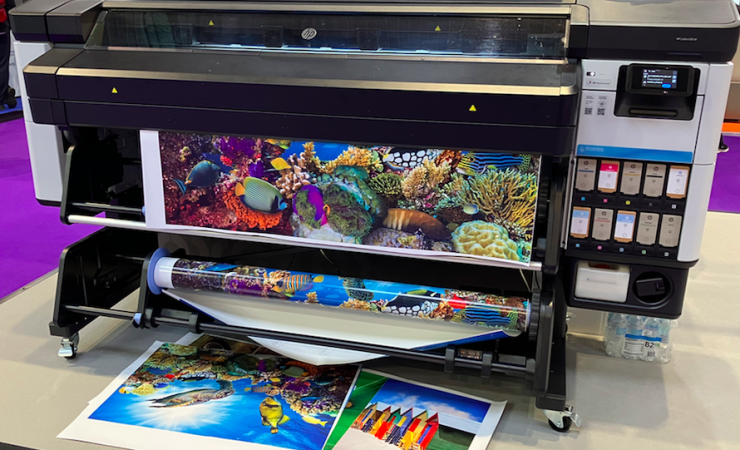
Latex printing uses water-based inks cured by heat, resulting in flexible, odorless, and environmentally friendly prints. This technology is ideal for indoor and outdoor applications, offering excellent color vibrancy and resistance to fading. Adobe Illustrator is widely used for designing vector graphics, logos, and layouts destined for large-format latex printers.
Before diving into file setup, it’s helpful to understand the basics of how latex printing works and why it’s preferred for many commercial and creative projects.
Setting Up Your Document for Latex Output
Proper document setup in Illustrator is crucial for achieving sharp, accurate results with latex printers. Here are the main steps:
- Choose the Right Document Size: Set your artboard to the exact dimensions required for your print job. Always account for bleed and safe zones if your design will be trimmed.
- Color Mode: Work in CMYK color mode, as most latex printers are calibrated for CMYK output. This helps ensure color consistency between your screen and the final print.
- Resolution: For raster elements, use a minimum of 150–300 dpi at final size. For guidance on sharpness, see these best resolution for latex printing tips.
- Bleed Settings: Add a bleed of at least 0.125″ (3mm) if your design extends to the edge of the material.
Color Management for Consistent Latex Prints
Achieving accurate color reproduction is a key concern when preparing files for latex printing with Adobe Illustrator. Here’s how to manage color effectively:
- Calibrate Your Monitor: Use a hardware calibrator to ensure your screen displays colors as accurately as possible. This minimizes surprises when your design is printed.
- Embed Color Profiles: Assign and embed the correct ICC profile for your printer and substrate. Consult your print provider for recommended profiles.
- Use Pantone Colors When Needed: For brand-critical colors, specify Pantone swatches in Illustrator. This helps maintain color fidelity across different print runs.
- Test Prints: Request a proof or test print, especially for large or high-value jobs.
For more advice on achieving eye-catching results, check out these tips for vibrant latex prints.
Preparing Artwork and Layers for Latex Output
Clean, well-organized Illustrator files are easier to print and less likely to encounter issues during production. Follow these best practices:
- Flatten Transparency: Use Illustrator’s “Flatten Transparency” function to avoid unexpected results with effects or blends.
- Expand Appearance: Expand strokes, effects, and text as needed to prevent compatibility issues with RIP (Raster Image Processor) software.
- Outline Fonts: Convert all text to outlines to ensure fonts render correctly, even if the printer doesn’t have your font installed.
- Remove Hidden Layers: Delete unused or hidden layers to reduce file size and avoid confusion.
Exporting Files for Reliable Latex Printing
Once your artwork is ready, exporting it correctly is essential for smooth printing. Here are the recommended steps:
- Preferred File Formats: PDF/X-4 is widely accepted and preserves vector data, transparency, and color profiles. EPS and TIFF are also commonly used for certain workflows.
- Embed Images: Make sure all linked images are embedded or supplied alongside your file.
- Check Bleed and Crop Marks: Include bleed and, if requested, add crop marks for precise trimming.
- Double-Check Resolution: Ensure all raster images meet the required dpi at final print size.
For more on the technical side, understanding the latex printing drying process can help you anticipate turnaround times and finishing requirements.
Practical Tips for Outstanding Latex Print Results
- Communicate with Your Print Provider: Share your file specs and ask for their preferred settings or templates.
- Proof Your Design: Print a small section or scaled-down version to check colors and clarity before committing to a full run.
- Consider the Environment: Choose latex-compatible substrates and consider the weather resistance of latex prints for outdoor applications.
- Stay Organized: Name your layers, files, and swatches clearly to avoid confusion during revisions or handoff.
Frequently Asked Questions
What file format should I use when exporting from Illustrator for latex printers?
PDF/X-4 is generally the best choice, as it maintains vector quality, transparency, and embedded color profiles. Always check with your print provider for their preferred format.
How do I ensure color accuracy when printing with latex technology?
Calibrate your monitor, use CMYK color mode, embed the correct ICC profiles, and request a printed proof before full production. Using Pantone swatches for critical colors can also help.
What resolution should my images be for large-format latex prints?
For most large-format prints, 150–300 dpi at final size is recommended. Higher resolution is better for close-up viewing, while lower dpi may suffice for distant signage.
Can I use spot colors or metallic inks with latex printing?
While latex printers primarily use CMYK and sometimes additional process colors, some advanced models can simulate spot colors. Metallic inks are less common, so check with your provider for capabilities.