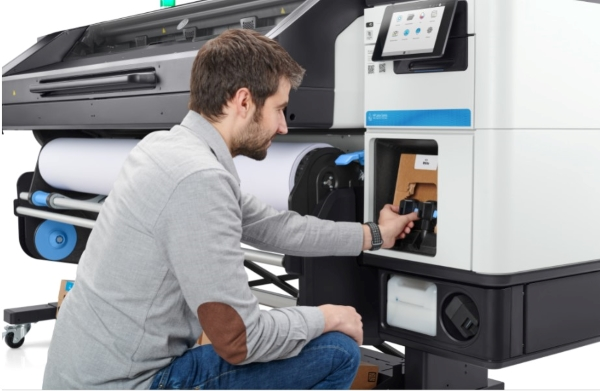

Latex printers are valued for their versatility, eco-friendly operation, and ability to produce high-quality prints on a range of materials. However, even the most reliable machines can encounter problems that disrupt workflow and impact print quality. Understanding how to address common challenges quickly can save time, reduce waste, and keep your print shop running smoothly. This guide offers practical steps for troubleshooting latex printer issues, from diagnosing print defects to resolving connectivity and color management problems.
If you’re new to latex printing or want to deepen your understanding, consider reading this introduction to latex printing for a solid foundation before diving into problem-solving techniques.
Identifying Common Latex Printer Problems
Before attempting any fixes, it’s crucial to pinpoint the exact nature of the issue. Some of the most frequent challenges users face with latex printers include:
- Print quality defects such as banding, color shifts, or streaks
- Media feed or loading errors
- Ink cartridge recognition failures
- Connectivity and communication problems
- Color calibration inconsistencies
- Unexpected shutdowns or error codes
By observing error messages on the printer’s display panel and checking the print output, you can often narrow down the cause. Keep a log of recurring issues to help with future diagnostics.
Quick Solutions for Print Quality Issues
Print quality concerns are among the most common reasons for troubleshooting latex printer issues. Here are some actionable steps to resolve them:
Addressing Banding and Streaks
- Check printhead health: Use the printer’s built-in utility to run a printhead check. Clean or replace printheads if nozzles are clogged or misfiring.
- Inspect media alignment: Ensure the media is loaded straight and tensioned correctly. Misaligned media can cause uneven ink distribution.
- Review print settings: Verify that you’re using the correct media profile and print mode for your material. Incorrect settings can lead to visible defects.
Resolving Color Shifts and Inconsistencies
- Calibrate your monitor and printer: Color management tools help ensure what you see on screen matches the final print. If you’re experiencing major discrepancies, consider using a monitor calibrator.
- Update or reinstall ICC profiles: Outdated or mismatched profiles can cause unexpected color results.
- Check ink levels and expiration dates: Low or expired inks may result in faded or inaccurate colors.

Fixing Media Handling and Feed Errors
Media jams, skewed prints, or feed errors can halt production and waste materials. To address these problems:
- Clean the feed rollers: Dust and debris can cause slippage or misfeeds. Regularly wipe rollers with a lint-free cloth.
- Check for obstructions: Remove any scraps of media or foreign objects from the feed path.
- Verify media compatibility: Ensure you’re using materials supported by your printer model. Refer to the manufacturer’s guidelines for thickness and type.
- Adjust tension settings: For some latex printers, adjusting the media tension can help prevent wrinkling or shifting during printing.
Solving Ink Cartridge and Printhead Recognition Problems
Sometimes, the printer may not recognize new cartridges or printheads, resulting in error codes or halted jobs. To resolve these:
- Reseat cartridges and printheads: Remove and reinstall them to ensure proper contact with the printer’s electrical connectors.
- Check for firmware updates: Manufacturers often release updates to address compatibility issues with new consumables.
- Inspect for damage: Look for bent pins, ink leaks, or physical damage on cartridges and printheads.
- Use genuine supplies: Non-OEM cartridges may not be recognized or could void your warranty.
Dealing with Connectivity and Communication Issues
Networked latex printers can experience connection drops or fail to communicate with print servers. Here’s how to troubleshoot:
- Restart printer and network devices: Power cycling can resolve temporary glitches.
- Check cables and wireless connections: Ensure all cables are secure and Wi-Fi signals are strong.
- Update drivers and firmware: Outdated software can cause compatibility issues, especially after operating system updates.
- Assign a static IP address: This can prevent network conflicts and make the printer easier to locate.

Best Practices for Preventing Recurring Problems
While fast fixes are important, prevention is key to minimizing downtime. Here are some maintenance tips:
- Perform regular cleaning: Follow the manufacturer’s schedule for cleaning printheads, rollers, and other components.
- Update software routinely: Keep drivers, firmware, and RIP software current to avoid compatibility issues.
- Store consumables properly: Keep ink cartridges and media in climate-controlled environments to prevent degradation.
- Monitor environmental conditions: Latex printers perform best in stable temperature and humidity ranges.
- Document maintenance and issues: Keeping records helps identify patterns and streamlines future troubleshooting.
For a deeper dive into keeping your equipment in top shape, check out this guide on how to maintain a latex printer for long-term performance.
Understanding Latex Printing Technology
Gaining insight into how latex printing works can help you diagnose and resolve issues more effectively. Latex printers use water-based inks that are cured with heat, producing durable, flexible prints suitable for indoor and outdoor applications. If you want to learn more about the process and its advantages, this overview of latex printing technology provides a detailed explanation.
Latex printing is also recognized for its environmental benefits. If sustainability is a priority for your business, explore the advantages in this article on eco friendly latex printing.
Frequently Asked Questions
What should I do if my latex printer displays a generic error code?
Start by consulting your printer’s manual or the manufacturer’s online support resources to interpret the error code. Power cycle the printer, check for obvious issues like jams or low ink, and ensure all connections are secure. If the error persists, contact technical support with the specific code for further assistance.
How often should I perform maintenance on my latex printer?
Routine maintenance should be performed according to the manufacturer’s recommendations, which typically include weekly or monthly cleaning of printheads and rollers, as well as periodic software updates. Regular upkeep helps prevent many common problems and extends the life of your equipment.
Can I use third-party inks or media with my latex printer?
While some third-party products may be compatible, using non-OEM inks or unsupported media can lead to print quality issues, recognition errors, or even void your warranty. Always check with your printer manufacturer before using alternative supplies.
Conclusion
Addressing troubleshooting latex printer issues efficiently requires a mix of technical know-how and proactive maintenance. By following the steps outlined above—identifying the root cause, applying targeted fixes, and adopting best practices—you can minimize downtime and maintain high-quality output. For more information on durability and protection, see this article on how durable is latex printing or learn about weather resistance in is latex printing waterproof.