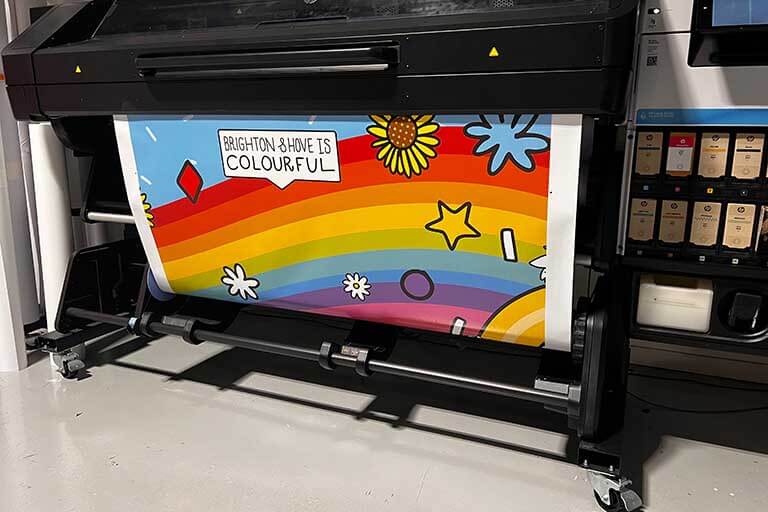

Achieving professional-quality results when printing from Photoshop to a latex printer requires a clear understanding of both the software and the hardware involved. Latex printing with Photoshop offers vibrant colors, durability, and versatility for a wide range of applications, from signage to fine art. However, to get the most out of this workflow, it’s essential to set up your files, color management, and printer settings correctly.
This article will walk you through the essential steps for preparing your artwork, optimizing color accuracy, and configuring your printer for the best possible output. If you’re interested in how digital workflows are transforming the print industry, you might also find value in our guide on what is digital prototyping for packaging.
Understanding Latex Printing Technology
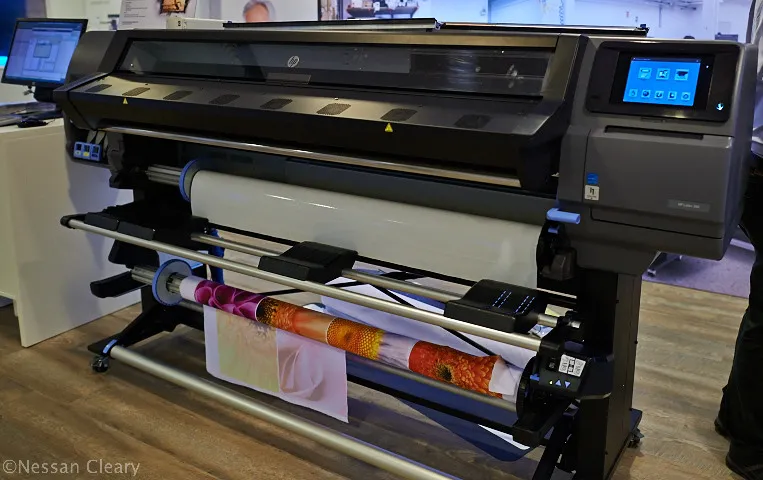
Before diving into the specifics of latex printing with Photoshop, it’s helpful to understand what sets latex printers apart. These devices use water-based inks combined with latex polymers, which are cured using heat. The result is prints that are not only vibrant and sharp but also flexible, odorless, and resistant to scratches and fading.
Latex printers are widely used for banners, vehicle wraps, wall graphics, and other large-format applications. Their eco-friendly profile and compatibility with a broad range of substrates make them a popular choice for both commercial and creative projects. For a deeper dive into the technology, you can check out this comprehensive overview of latex printers and their benefits.
Preparing Your Photoshop File for Latex Output
The foundation of a successful print job starts in Photoshop. Here are the key steps to ensure your artwork is ready for latex output:
- Set the Correct Resolution: For large-format prints, a resolution of 150–300 DPI at final output size is typically sufficient. This balances quality and file manageability.
- Choose the Right Color Mode: Work in RGB for editing flexibility, but convert to CMYK before printing. Use the printer’s recommended ICC profile for accurate color conversion.
- Flatten or Rasterize Layers: To avoid compatibility issues, flatten your image or rasterize vector elements before exporting.
- Embed Color Profiles: Always embed your working color profile (such as Adobe RGB or sRGB) when saving the file.
Color Management and Calibration for Accurate Output
One of the most critical aspects of printing from Photoshop to a latex printer is ensuring color accuracy. Monitor calibration and color management workflows help bridge the gap between what you see on screen and the final print.
- Calibrate Your Monitor: Use a hardware calibrator regularly to maintain consistent color. This step is essential for reliable soft-proofing.
- Soft Proof in Photoshop: Enable soft proofing (View > Proof Setup) and select the ICC profile for your latex printer and chosen media. This simulates how colors will appear on the final print.
- Use Printer ICC Profiles: Download and install the latest ICC profiles from your printer or media manufacturer for optimal results.
- Consistent Lighting: Evaluate prints under standardized lighting conditions to avoid color perception errors.
For businesses managing color across multiple locations, cloud-based solutions can streamline workflows. Learn more about the benefits of cloud-based color management for global brands.
Configuring Latex Printer Settings in Photoshop
Once your file is ready and color-managed, it’s time to set up your printer for the job. Here’s how to optimize your latex printer settings from within Photoshop:
- Access the Print Dialog: Go to File > Print. Select your latex printer from the printer list.
- Choose the Correct Media Type: In the printer properties, select the substrate you’re printing on (vinyl, canvas, paper, etc.). This ensures the printer uses the right ink limits and drying settings.
- Set Print Quality: Adjust print resolution and speed based on your needs. Higher quality settings use more passes for finer detail but take longer.
- Color Handling: Decide whether Photoshop or the printer manages colors. For best results, let Photoshop manage colors and select the appropriate ICC profile.
- Check Scaling and Orientation: Ensure your artwork fits the media size and is oriented correctly.
- Preview Before Printing: Use the print preview to confirm settings and layout before sending the job.
Best Practices for Consistent Latex Print Results
Consistency is key when producing prints for clients or business use. Here are some additional tips to maintain high standards:
- Keep Your Printer Maintained: Regularly clean printheads and perform maintenance routines to avoid banding and color shifts.
- Store Media Properly: Protect your substrates from humidity and dust to prevent print defects.
- Test Before Large Runs: Print a small sample to verify color and quality before committing to a full production run.
- Document Your Settings: Keep a log of successful settings for different media types and projects.
If you’re interested in innovative finishing techniques, our article on what is holographic lamination explores how to add eye-catching effects to your prints.
Troubleshooting Common Issues in Latex Printing Workflows
Even with careful preparation, issues can arise. Here’s how to address some frequent problems encountered when using Photoshop with latex printers:
- Color Mismatch: Double-check that the correct ICC profiles are used in both Photoshop and the printer driver. Calibrate your monitor and soft-proof regularly.
- Banding or Streaks: Clean printheads and ensure the media is loaded correctly. Use the printer’s built-in maintenance tools.
- Incorrect Scaling: Confirm document size and print settings match the intended output dimensions.
- Ink Not Drying Properly: Select the right media type and drying settings in the printer driver.
For advanced users, exploring new curing technologies can further improve print quality and efficiency. Discover more in our resource on what is electron beam curing in printing.
Frequently Asked Questions
What file format should I use when printing from Photoshop to a latex printer?
The most reliable formats are TIFF and PDF, as they preserve color profiles and image quality. Always embed the color profile and flatten layers before saving.
How do I ensure color accuracy when using Photoshop with a latex printer?
Calibrate your monitor, use the correct ICC profiles for your printer and media, and enable soft proofing in Photoshop. Regularly check your output under consistent lighting.
Can I print directly from Photoshop, or should I use a RIP (Raster Image Processor)?
While direct printing from Photoshop works for many jobs, using a RIP offers advanced color management, nesting, and workflow automation—especially useful for high-volume or complex projects.
What are the advantages of latex printing compared to other ink technologies?
Latex prints are durable, flexible, and eco-friendly, with fast drying times and compatibility with a wide range of materials. They’re ideal for both indoor and outdoor applications.
Conclusion
Mastering latex printing with Photoshop involves more than just hitting “print.” By preparing your files carefully, calibrating your equipment, and selecting the right printer settings, you can consistently achieve vibrant, accurate, and durable results. Whether you’re producing signage, fine art, or packaging prototypes, these best practices will help you get the most from your latex printer workflow.
For more insights into design trends and production techniques, explore our article on how to design packaging for Gen Z consumers.