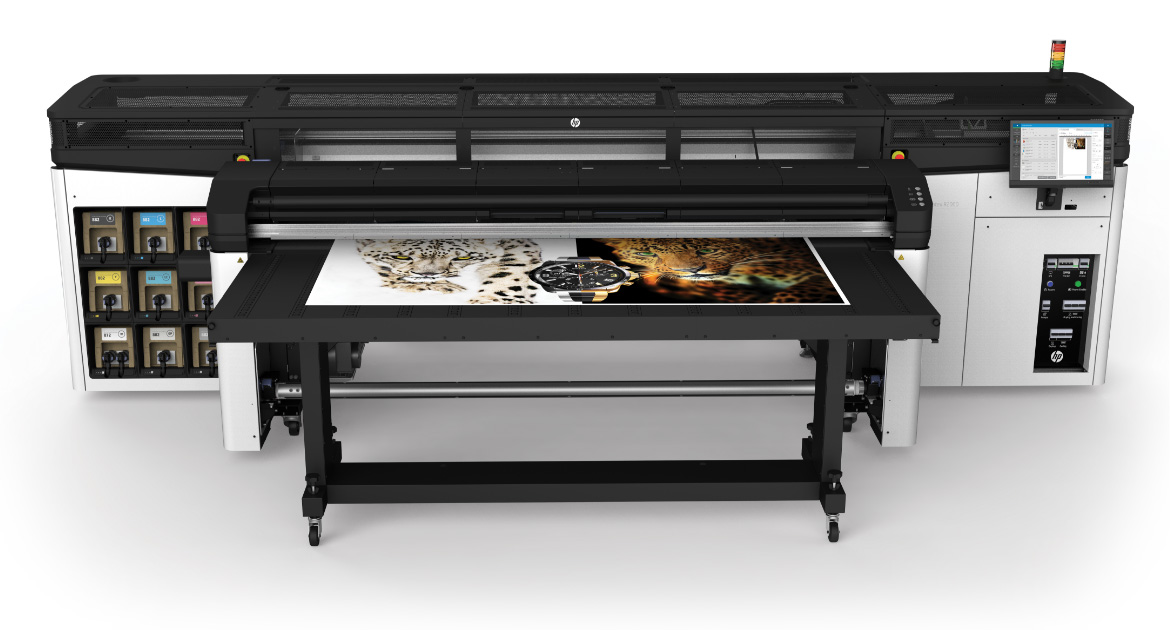

Achieving vibrant, consistent, and professional results with latex printers depends on much more than just the hardware or ink. The best RIP settings for latex printing are crucial for optimizing color accuracy, image sharpness, and media compatibility. Whether you’re running a busy print shop or managing in-house production, understanding how to configure your Raster Image Processor (RIP) can make the difference between average and exceptional output.
This guide will walk you through the essential considerations and practical adjustments for maximizing print quality. We’ll cover color management, resolution, ink limits, and advanced features that help you get the most out of your latex printer. If you’re interested in related innovations, you might also find value in learning about what is digital prototyping for packaging and how it can speed up your production workflow.
Understanding RIP Software and Its Role in Latex Printing
The RIP (Raster Image Processor) is the software that translates digital files into data your latex printer can understand. It manages color conversion, halftoning, and other technical processes that directly impact print quality. Selecting and configuring the right RIP settings is essential for producing sharp images, accurate colors, and reliable results across different substrates.
Most latex printers are compatible with industry-standard RIPs such as Caldera, Onyx, and EFI Fiery. Each offers a range of controls for fine-tuning output. While the interface and terminology may vary, the core principles for achieving optimal results remain consistent.
Key RIP Settings for Superior Latex Print Quality
To get the most from your latex printer, focus on these critical areas when adjusting your RIP configuration:
Color Management and ICC Profiles
One of the most important aspects of achieving consistent, high-quality prints is robust color management. Always use ICC profiles that match your specific printer, ink set, and media. These profiles ensure that colors are rendered accurately and predictably, minimizing waste and reprints.
- Install and select the correct ICC profile for each substrate you use.
- Calibrate your monitor using a hardware calibrator for true-to-life soft proofing. For best results, consider using a tool like a monitor calibrator to keep your display accurate.
- Enable color management in your RIP and choose rendering intents (such as Perceptual or Relative Colorimetric) based on the type of graphics and desired output.
Resolution and File Preparation
The right resolution ensures crisp, detailed prints without unnecessary file bloat or slow processing. For most latex print applications, a setting between 300 and 600 dpi is ideal. Higher resolutions may not yield visible improvements and can slow down production.
- Prepare artwork at the final print size and target resolution.
- Avoid upscaling low-resolution images in the RIP; this can introduce artifacts.
- Use lossless file formats (such as TIFF or PDF/X) to preserve image quality.
Ink Limiting and Drying Controls
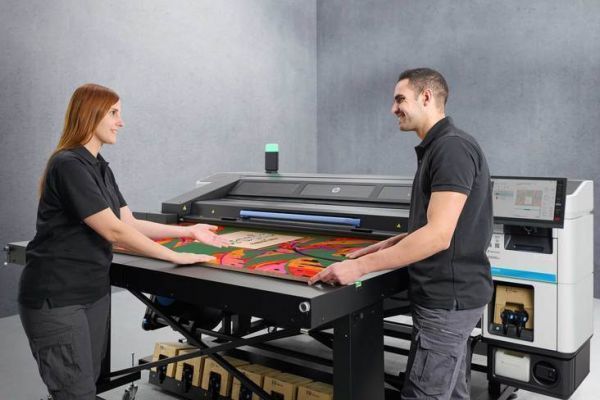
Proper ink limiting is essential for latex printing. Too much ink can cause smudging, muddy colors, or drying issues, while too little can result in washed-out images. Most RIPs allow you to set ink limits per channel or globally.
- Use the RIP’s ink restriction tools to test and set the maximum ink load that your media can handle without compromising drying or adhesion.
- Adjust drying and curing settings within the RIP or printer panel to match the ink load and media type.
- For challenging substrates, consider running a test chart to fine-tune these parameters.
Advanced Features: Overprint, GCR, and Spot Colors
Many RIPs offer advanced controls that can further enhance latex print quality:
- Overprint simulation ensures accurate reproduction of complex vector graphics and transparencies.
- Gray Component Replacement (GCR) manages the balance between black and colored inks, improving neutrality and reducing ink consumption.
- Spot color management allows for precise matching of brand or Pantone colors, critical for signage and corporate graphics.
Media Selection and Substrate Profiles
The choice of media has a significant impact on print results. Always use substrate profiles that match the exact material loaded in your printer. These profiles adjust ink limits, color curves, and drying settings for optimal compatibility.
For unusual or specialty substrates, you may need to create a custom profile using your RIP’s profiling tools. This process involves printing and measuring color targets to generate a tailored ICC profile and ink limit.
Workflow Tips for Consistent Latex Printing Results
- Standardize your workflow by using preset configurations for common jobs and media types.
- Regularly calibrate both your printer and monitor to maintain color consistency.
- Archive successful RIP settings for future reference and repeatability.
- Keep your RIP software updated to benefit from the latest features and bug fixes.

Common Mistakes to Avoid in Latex Print Production
- Skipping monitor calibration, leading to mismatched colors between screen and print.
- Using generic or outdated ICC profiles instead of those matched to your printer and media.
- Overloading ink, which can cause drying issues and poor adhesion.
- Neglecting to update RIP software, missing out on important improvements.
Further Reading and Resources
For a deeper dive into the advantages of latex technology and how it compares to other print methods, see this overview of latex printing benefits. You can also explore topics like the benefits of cloud-based color management for global brands, which can further streamline your workflow and improve color accuracy across multiple locations.
FAQ
What are the most important RIP settings for latex printing?
The most critical settings include selecting the correct ICC profile for your media, setting the optimal resolution (usually 300–600 dpi), adjusting ink limits to prevent over-saturation, and enabling color management features. Fine-tuning these parameters ensures vibrant, accurate, and durable prints.
How often should I calibrate my monitor and printer?
For consistent results, calibrate your monitor at least once a month and your printer whenever you change ink, media, or after significant use. Regular calibration helps maintain color accuracy from design to final output.
Can I use the same RIP settings for all types of media?
No, different substrates require unique settings. Always use or create a specific ICC profile and ink limit for each media type. This ensures optimal adhesion, drying, and color reproduction for every job.
Where can I learn more about advanced print finishing techniques?
If you’re interested in exploring finishing options, check out guides on what is holographic lamination and other specialty processes to create eye-catching print products.