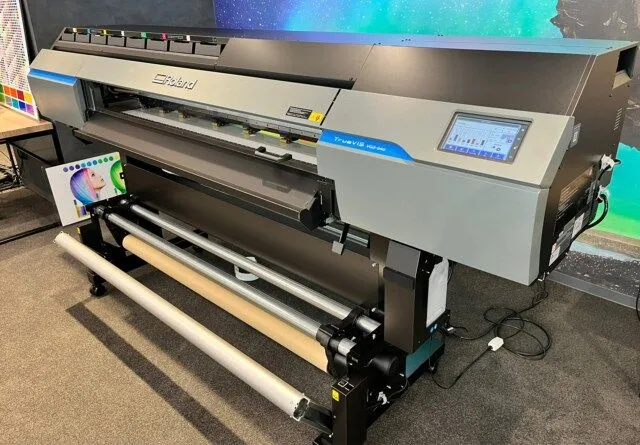

Getting the most from your eco solvent printer depends on more than just the machine or the ink you use. The right eco solvent ink print settings are essential for achieving crisp, vibrant, and durable results across a range of media. Whether you’re producing signage, vehicle wraps, or custom graphics, understanding how to fine-tune your printer’s parameters can make a significant difference in both print quality and ink efficiency.
This guide covers the most important settings to consider, practical tips for different substrates, and troubleshooting advice for common issues. If you’re exploring sustainable alternatives, you may also find value in our guide to solvent-free printing processes, which provides a broader look at eco-friendly printing solutions.
Understanding Eco Solvent Printing Technology
Eco solvent printers use specially formulated inks that are less harmful to the environment compared to traditional solvent inks. These inks produce low levels of volatile organic compounds (VOCs) and are suitable for indoor and outdoor applications. The combination of eco solvent ink print settings and compatible media ensures prints are not only vibrant but also long-lasting and resistant to fading.
For a more detailed explanation of how these inks work and their benefits, you can refer to this comprehensive overview of eco solvent ink and printers.
Key Print Settings for Optimal Results
To achieve the best possible output, several printer parameters must be adjusted according to the type of job and substrate. Below are the most critical settings to review and optimize:
1. Print Resolution and Quality Modes
Resolution, measured in dots per inch (DPI), directly affects the sharpness and detail of your prints. Higher DPI settings (such as 1440×1440) produce finer detail but may slow down production and increase ink usage. For banners and large-format graphics viewed from a distance, a lower DPI (720×720) is often sufficient and more economical.
- High-resolution mode: Ideal for photographic images, fine art, and close-up displays.
- Standard mode: Suitable for most signage and general graphics.
- Draft mode: Use for test prints or large runs where speed is a priority over detail.
2. Media Type Selection
Most printers offer a range of media profiles—preset configurations tailored for specific substrates like vinyl, canvas, or paper. Selecting the correct profile automatically adjusts ink limits, drying temperatures, and feed rates. Using the wrong profile can lead to poor adhesion, color shifts, or smudging.
- Always match the media profile to the actual material loaded in the printer.
- For specialty surfaces, consider creating a custom profile for best results.
3. Ink Density and Color Management
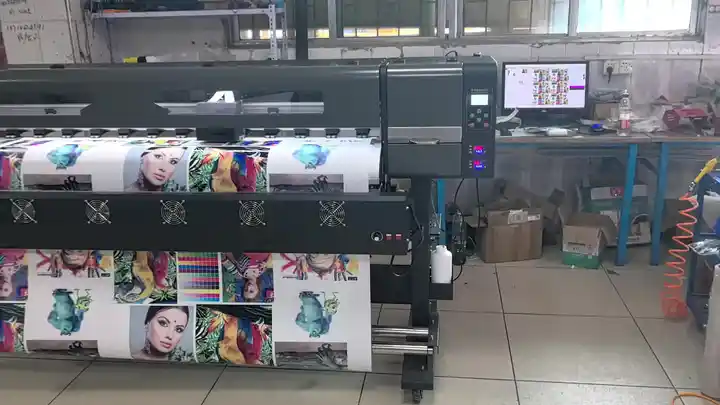
Proper ink density settings ensure colors are vibrant without oversaturating the media. Too much ink can cause bleeding or slow drying, while too little results in dull prints. Most RIP (Raster Image Processor) software allows you to fine-tune these parameters:
- Start with the manufacturer’s recommended ink limits for your chosen media.
- Use color management tools to calibrate your printer and maintain consistent results.
- Perform regular nozzle checks and head cleanings to avoid color banding.
4. Print Speed and Pass Count
Print speed is determined by how quickly the print head moves and how many passes it makes over the media. More passes generally mean higher quality, but at the cost of slower production:
- High-pass settings: Best for detailed graphics and photographic prints.
- Low-pass settings: Suitable for fast production where quality is less critical.
5. Heater and Dryer Settings
Eco solvent inks require heat to cure properly. Most printers feature pre-heaters, platen heaters, and post-heaters. The correct temperature settings help the ink bond to the substrate and speed up drying:
- Follow the media manufacturer’s guidelines for heater temperatures.
- Increase post-heater temperature for thicker or less absorbent materials.
- Allow prints to fully cure before handling or laminating.
Tips for Different Media Types
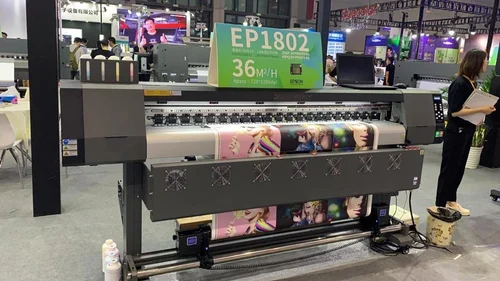
Each substrate reacts differently to eco solvent inks. Here are some practical adjustments for common materials:
- Vinyl: Use medium to high heat and moderate ink density. Allow extra drying time for glossy finishes.
- Canvas: Lower ink density helps prevent bleeding. Use a custom profile for textured surfaces.
- Paper: Reduce heat to prevent warping. Use lower ink limits to avoid cockling.
- Backlit Films: Increase ink density for deeper blacks and vibrant colors.
If you’re interested in advanced packaging or specialty substrates, you might also want to explore what is sublimation printing for specialty packaging for alternative print methods.
Troubleshooting Common Print Issues
Even with optimal eco solvent ink print settings, occasional problems can arise. Here are some frequent issues and how to address them:
- Banding: Check for clogged nozzles, perform a head cleaning, and ensure the correct pass count is set.
- Color Inconsistencies: Recalibrate your color profiles and verify ink cartridges are not expired.
- Smudging or Poor Adhesion: Increase heater settings and confirm you’re using the right media profile.
- Ink Bleeding: Lower the ink density and try a different media profile if necessary.
Maintenance for Consistent Quality
Regular maintenance is crucial for keeping your printer in top condition. This includes:
- Running nozzle checks and head cleanings as recommended by the manufacturer.
- Keeping the print environment clean and dust-free.
- Storing ink cartridges in a cool, dry place to prevent degradation.
- Updating firmware and RIP software for improved compatibility and performance.
Frequently Asked Questions
What is the ideal temperature setting for eco solvent printing?
The optimal temperature varies by substrate, but generally, pre-heater settings range from 35–45°C, platen heaters from 40–50°C, and post-heaters from 45–55°C. Always consult your media supplier’s recommendations for best results.
How often should I calibrate my printer for color accuracy?
It’s best to calibrate your printer whenever you change ink brands, switch media types, or notice color shifts. Regular calibration—at least once a month—helps maintain consistent output.
Can I use generic ink with my eco solvent printer?
While some generic inks may be compatible, using manufacturer-recommended or high-quality third-party inks ensures optimal performance and reduces the risk of printhead clogging or color inconsistencies.
Conclusion
Fine-tuning your eco solvent ink print settings is essential for producing high-quality, durable prints while minimizing waste and operational costs. By understanding your printer’s capabilities, selecting the right media profiles, and maintaining your equipment, you can achieve professional results across a wide range of applications. For those seeking to further reduce their environmental impact, consider exploring innovations like oxygen scavenger labels or the future of cobots in packaging decoration for the latest trends in sustainable printing and packaging.